

If you’ve ever tried to run Getting Things Done inside a task-management app, you already know the problem: the app wants to be your system. It wants its own subscription, its own sync service, its own opinions about what a “project” is, and — sooner or later — your data, sitting on someone else’s server.
I got tired of that trade. So over the last while I’ve been running my entire next-action list, my daily engage view, and my end-of-day cleanup out of a single Obsidian vault built on nothing but free community plugins. No SaaS task manager. No subscription. No account. Just plain markdown files on my own disk, which means the whole thing is also fully readable, searchable, and future-proof in a way a proprietary app’s database file will never be.
I’m calling it Launchpad, and today I’m giving it away — the actual vault, ready to unzip and open.
Who this is for
This post (and the download) is aimed at three overlapping groups:
- Obsidian users who are comfortable with the basics — folders, links, maybe a plugin or two — and want a concrete, working example of a full task system rather than another theoretical “how GTD works” explainer.
- GTD practitioners who like the method but have never found a tool that gets out of the way of it.
- Privacy- and ownership-minded people who’d rather their to-do list lived in a text file they control than in a company’s cloud.
You don’t need to be an Obsidian power user to use this. You do need to be willing to install four or five free plugins and read a readme. That’s it.
The problem Launchpad is solving
GTD asks a system to do a small number of things really well:
- Capture everything that has your attention, fast, without deciding what to do with it yet.
- Clarify it into a next action, tied to a context.
- Organize those actions into lists you can trust — by context, by project, by who you’re waiting on.
- Reflect, regularly, so the lists stay current.
- Engage — actually work from the lists, not from your memory or your inbox.
Most task apps are good at #3 and terrible at #1 and #5. They make organizing look pretty and make capturing and actually working the list feel like data entry. Launchpad flips that: it’s boring-looking on purpose, and all the cleverness goes into removing friction from the parts you touch every single day.
Meet Mission Control
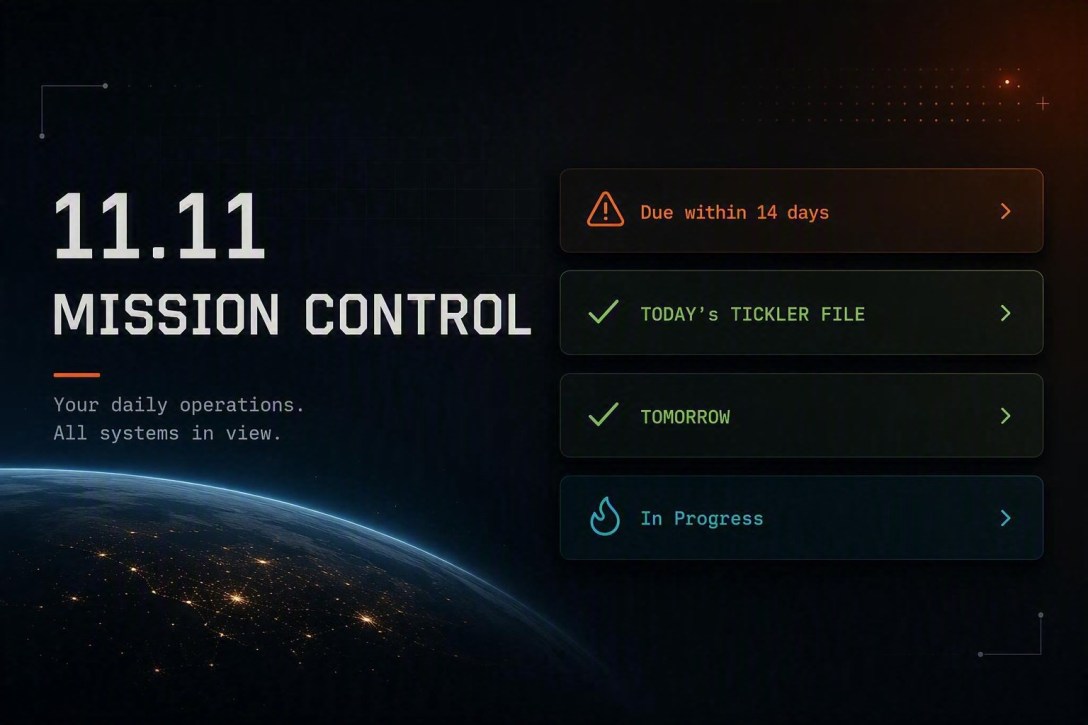
The heart of the vault is one file: 11.11 Mission Control.md. Everything that’s still open lives here, in a single long note, split into named sections:
- 🎪 Ad Hoc — a catch-all for anything that doesn’t fit a category yet
- 🙇 Deep Work — scheduled focus blocks
- 🖥️ Office and 🏭 Work location — context-based action lists, straight out of classic GTD (these are quite literally “where can I do this”)
- ☎️ Calls — calls to make
- 💬 Agendas — things to raise next time you’re with a specific person or team
- 🤷 Waiting — things you’re waiting on from someone else
- ♻️ Recurring — repeating tasks
- 🏁 Projects — one line per project, with a nested
Ref/Start/End/Notesblock underneath it - 📚 References — a legend explaining all of the shorthand below, so you’re never guessing at your own notation six months later
One long file sounds like a recipe for chaos, and it would be, except for one habit: fold everything. A single hotkey (Ctrl+Alt+F) collapses every heading back down to just the section titles. You expand only the section you’re currently working from, do the work, and fold it again. It turns a genuinely long document into something that feels like a short one, and it’s the single biggest reason this system stays usable at 100+ open items instead of collapsing into overwhelm.
At the very top of Mission Control sit four live queries (powered by the Tasks plugin) that do a first pass of prioritization for you before you’ve read a single line:
- Everything due within 14 days
- Everything scheduled today or earlier (your tickler file)
- Everything scheduled for tomorrow
- Everything currently marked in progress
A shorthand worth stealing
The following notation works and makes sense for me personally. Please change it to fit your needs.
Every section has its own compact notation, documented in the References section so it never has to live in your head:
Office / Work location:Topic [ref] ⏳[scheduled date]Agendas:[Who/Company] [channel] [YYYY-MM-DD] - Topic [ref] ⏳[scheduled date]Waiting:w [Who/Company] [channel] [YYYY-MM-DD] - Topic [ref] ⏳[scheduled date]Calls:r [Who/Company] [YYYY-MM-DD] - Topic [ref] ⏳[scheduled date]
That leading w on every Waiting-For item matters more than it looks — it’s the one-character difference between “I need to raise this with someone” and “I’m blocked on someone else,” which is exactly the distinction classic GTD asks you to track. The [ref] codes (a notebook page, a PO number, a project ID) mean you can jot a two-second pointer instead of pasting a whole email thread into your task list.
The daily front end
You don’t work from Mission Control cold every morning. Each day gets its own note (courtesy of the Folder Notes and Templater plugins), auto-created from a template, containing exactly one thing beyond a link back to Mission Control: a Today’s Tickler File query — everything not done that’s scheduled today or earlier. It’s a landing pad, not a duplicate system. Open it, see what’s due, click through to Mission Control, and go.
FlushDone: the automation that does your tidying for you
This is the part people usually ask about first. Checking a box in GTD-land is only half the job — eventually those completed items need to leave your active list, or the list stops being trustworthy. Launchpad handles that with a small Templater script called FlushDone.
Run it (one command), and it will:
- Walk
Mission Control.mdtop to bottom, keeping track of which heading it’s currently under - Pull out every top-level task marked done (
[x]) or cancelled ([-]), along with any indented sub-lines beneath it - Append all of it to
11.12 Done.md, grouped under today’s date, tagging each item with the heading it came from — so a finished call shows up archived as(☎️ Calls), a finished project as(🏁 Projects), and so on - Leave everything else — open tasks, headings, notes — exactly where it was
No dated backups to manage, no manual copy-paste, no “did I already archive this” uncertainty. You check boxes all day, and once a day (or once a week, if you prefer a proper GTD weekly review) you run one command and your active list is clean again while your history stays fully intact and searchable in Done.md.
Built entirely on free plugins
Nothing here needs anything exotic. The whole system runs on:
| Plugin | What it does here |
|---|---|
| Templater | Runs the FlushDone script and spawns each day’s note from a template |
| Tasks | Powers the checkbox statuses and every query block in the vault |
| Dataview | One inline formula that resolves to a link to “today” |
| Folder Notes | Lets each numbered folder carry its own landing-page note |
| Calendar | Calendar-based navigation between daily notes |
| Minimal Theme + Style Settings | The square, custom-icon checkboxes ( [ ] [/] [x] [-] ) that make task status readable at a glance |
All free. All open source. All running locally, against files that are just… text. If you ever want to leave Obsidian, your entire task history is markdown you can open in Notepad. That portability is, in my opinion, the actual privacy story here — it’s not just that nothing is uploaded anywhere by default, it’s that you’re never one company’s business decision away from losing access to years of your own history.
Get the vault
I’ve packaged the exact structure above — folders, templates, the FlushDone script, plugin settings, and a set of example entries showing how each section gets used in practice — into a ready-to-open Obsidian vault.
Download the vault here:
To use it:
- Unzip it anywhere on your machine.
- In Obsidian, choose Open folder as vault and select the unzipped folder.
- Obsidian will prompt you to trust and enable the bundled community plugins — accept, since they’re the five listed above and nothing else.
- Open
11.00 Launchpad Readme.mdfirst — it’s the map to everything else, including exactly how FlushDone works and what all the shorthand means. - Delete or rewrite the example entries in Mission Control and Done, and it’s yours.
What it won’t do for you
To be honest about the trade-offs: this is a manual system. Nothing auto-prioritizes your day, nothing nags you, and nothing syncs to your phone unless you set up Obsidian Sync or a service like it yourself. If what you actually want is an app that thinks for you, this isn’t that. What it gives you instead is a system that never lies to you about what’s actually on your plate, that you fully own, and that costs nothing to run for as long as plain text files exist — which, unlike any given SaaS company, is likely to be a very long time.

